Stiva 1.3.0: all your excerpts in one place
Stiva 1.3.0 is out. The headline is a new page that gathers everything you've highlighted, quoted or noted down, across all your articles, in one place.
Around it there's a lot of smaller work: articles that download themselves when you open them, a tidier import, a fix for tags coming in from Instapaper, accessibility for screen readers, and a way to try the Premium features before you decide on them.
All your excerpts in one place
Highlighting a sentence, saving a quote or jotting a note is the easy part. The hard part is finding it again a month later, when you remember the line but not the article it came from.
In 1.3.0 all of it lives under one name: Excerpts. Inside an article, the panel now shows the highlights, quotes and notes of that article together. Tap one and you land on that exact spot in the text.
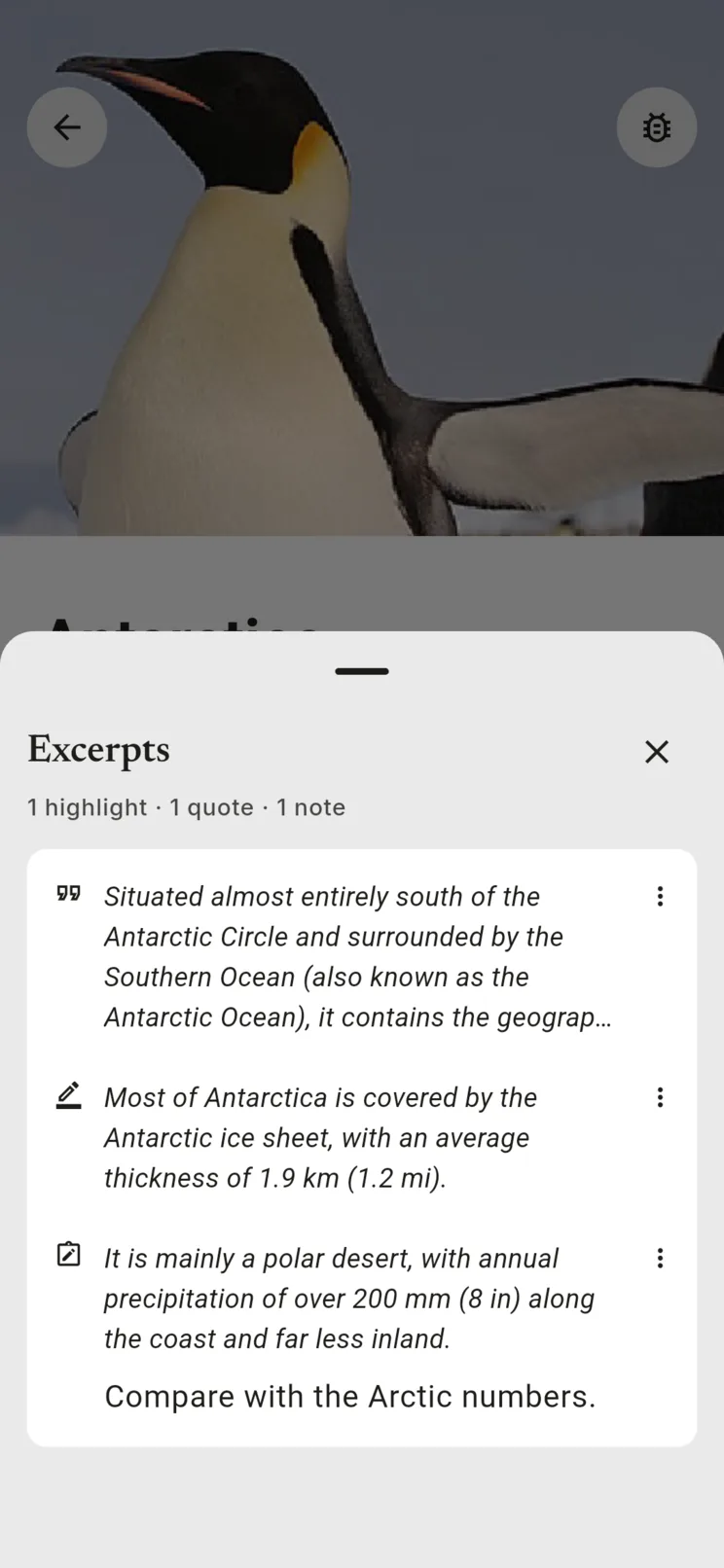
There's also a new entry in the side menu, just above Playlist. It opens a page with the excerpts of every article, grouped by article. You can filter by type, search them, share a note, and jump from any excerpt straight back to its spot in the article.
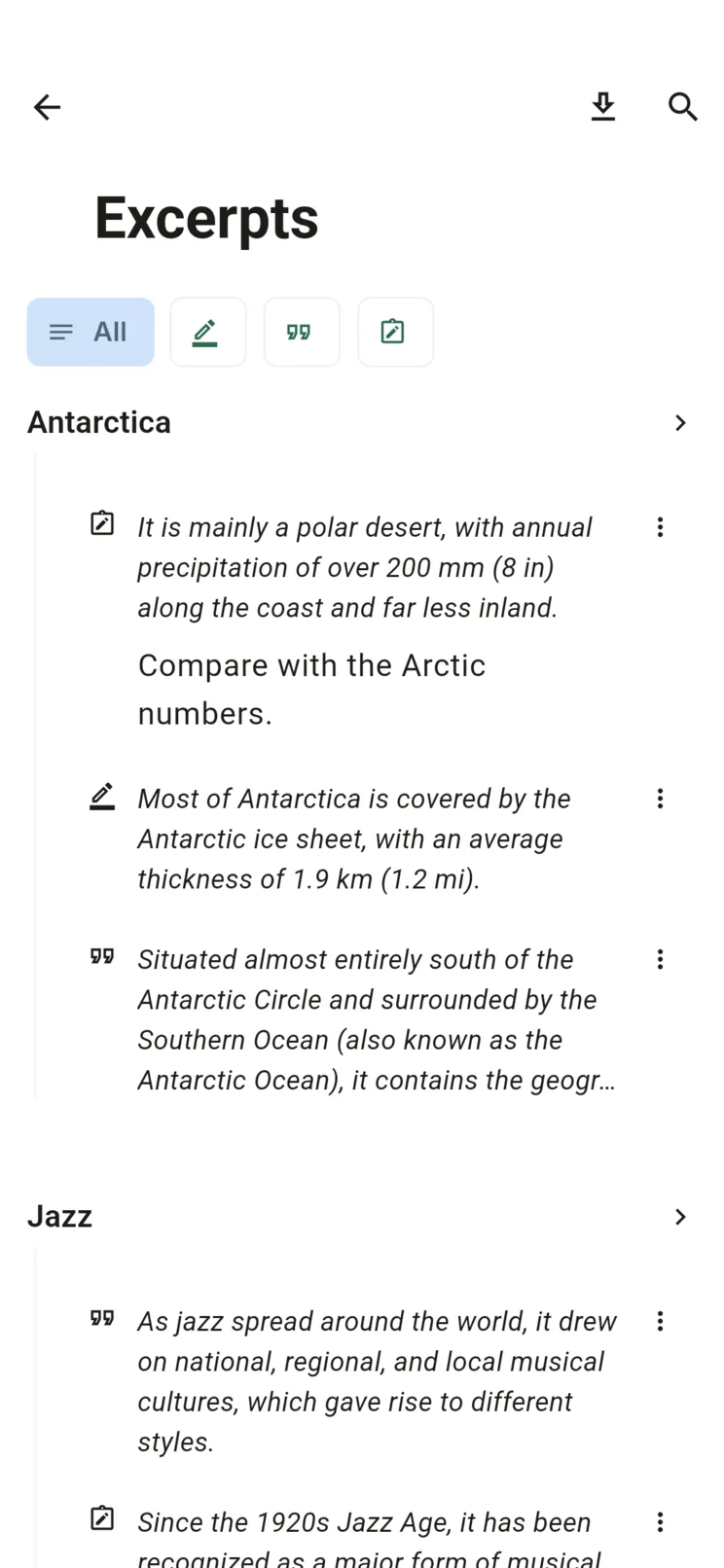
This replaces the separate Quotes and Notes pages. Nothing you saved is lost, it's all in the new page.
Articles that download themselves
Some articles reach Stiva without their text: imported from another app, sent from the browser extension, or saved when the page didn't answer. Now you just open them. If the text is missing, Stiva downloads it right there, inside the reader.
When items are added via import, Stiva currently saves them but does not automatically download all the content. Many competitors perform this task server-side and provide the content directly to the user. Stiva is designed to avoid reliance on third-party servers, performing operations directly on the device. Consequently, the decision was made not to perform a bulk download when importing items from files or apps. In the future, the app might make this process smarter.
Some sites block automatic downloads, usually with an anti-robot check. For those, Edit article now offers the internal browser even for articles you've already saved. Load the page yourself, pass the check, and save the text from there.
Tidier imports
When you bring in a whole library from another app, not everything in it is an article. A browser bookmark list is full of home pages, files, index pages and social profiles, and a read-later export often has a few YouTube videos in it.
So the import now sorts what it finds. YouTube videos go straight to Videos. Files, home pages, indexes and social media are suggested to you as links, with a sheet where you can untick the ones you do want to read in Stiva. The rest becomes articles, as before.
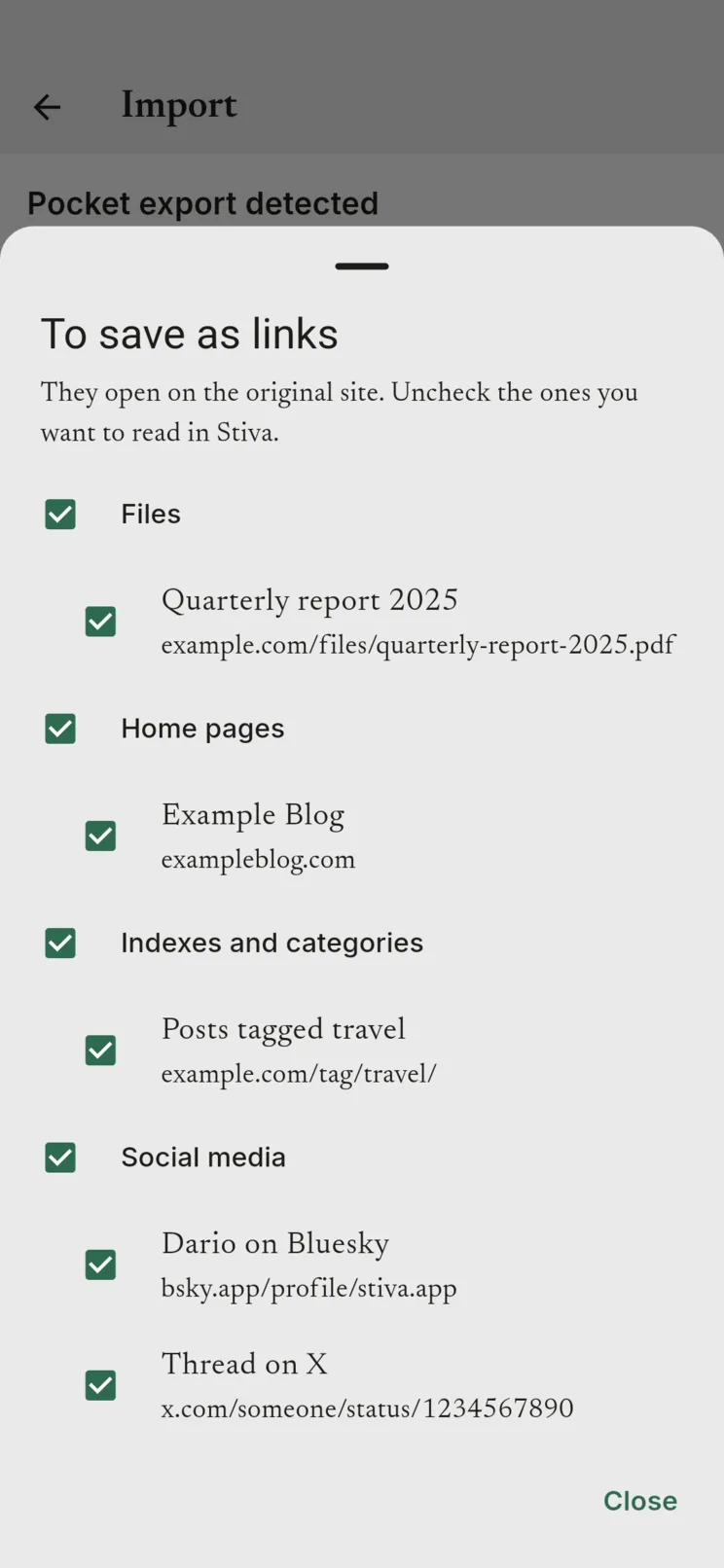
Whenever an item changes section, a short notice tells you where it went: "Moved to Videos", "Content updated. Moved to Queue".
A proper Instapaper import
A reader pointed out that the tags coming from Instapaper were incorrect. They were right; the parsing was not happening correctly.
The fix has three parts:
- Tags are read correctly. Instapaper's format is now understood, accents included.
- Instapaper has its own section in the import page, so you choose it explicitly instead of relying on automatic detection. If the file isn't the one Instapaper exports, Stiva says so instead of guessing.
- Tags imported earlier can be repaired. A "Fix tags" action lists the broken ones and shows what the fix will do, with a checkbox for each. It's never automatic, since someone may have tags written like that on purpose.
One limit worth knowing: an Instapaper export doesn't include highlights, notes or favourites, so those can't come across. The import summary now says so.
Accessibility
Another reader, who uses a screen reader, told me that many buttons in Stiva had no name: they showed an icon and nothing else, so the screen reader had nothing to say. That was a gap I hadn't seen from where I sit.
Every button that is only an icon now has a name, and the things you normally see only through a colour or a symbol, like the sort order, focus mode, reading speed, the selected theme or whether a feature is Premium, are now announced as well. I've also added automated checks, so a new button without a name can't slip back in unnoticed.
It's not the end of the work, but it's a real step, and I'm glad someone took the time to write.
Try Premium before you decide
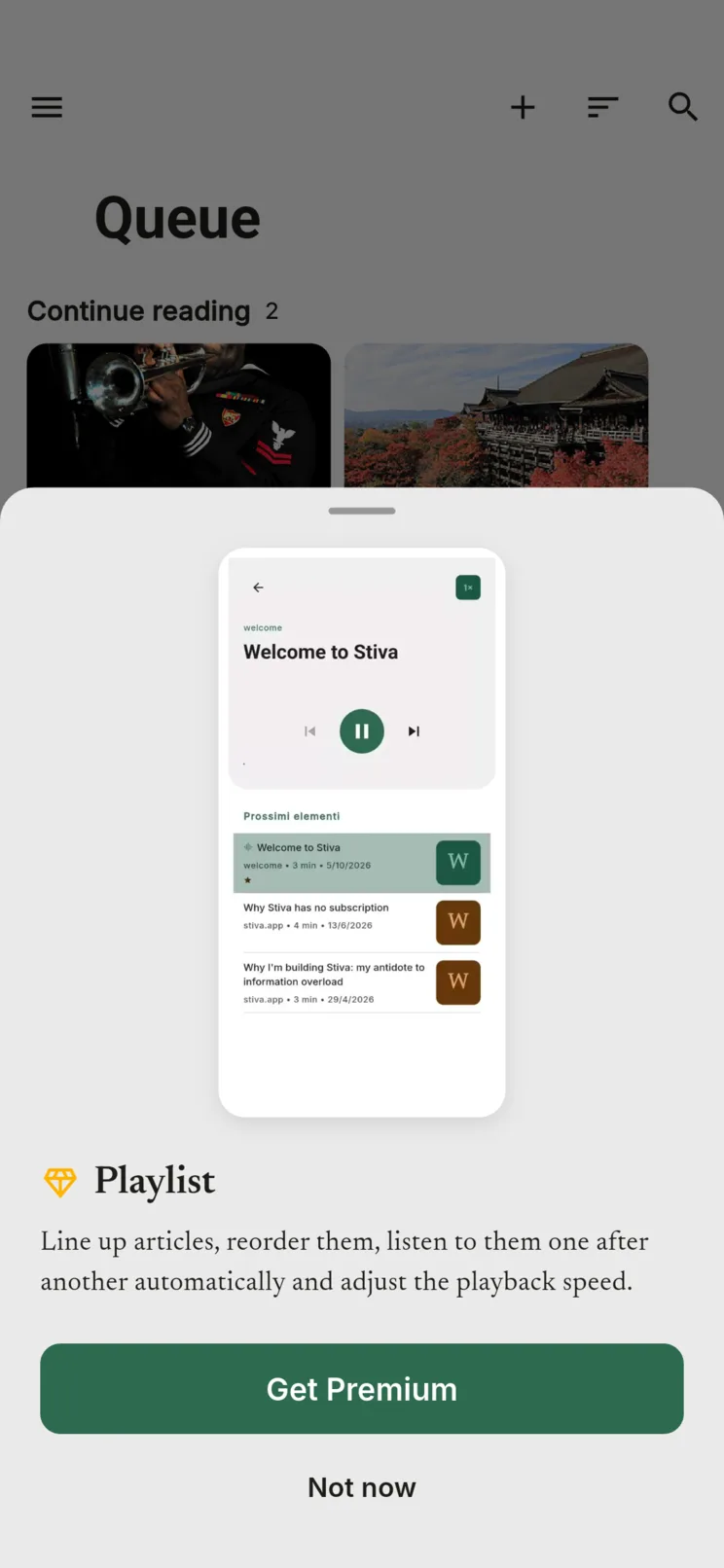
Focus mode and the playlist can't be tried in the free version, and a lock icon doesn't tell you much about what's behind it.
Now, when you tap either of them, a short animation shows how the feature works before the Premium screen appears. If it's not for you, you go back to what you were doing. If it is, the unlock is one tap further.
The manifesto, in the menu
The side menu now has a link to the Stiva manifesto, in the language of the app. It's the short version of what I'm trying to do with Stiva, and I'd rather it be one tap from the app than buried on the website.
Fixes
When connecting to Google Drive or Dropbox fails, Stiva now always tells you how the attempt went, instead of leaving you guessing. Smaller things: the "Moved to Collection" notice no longer appears for videos, which stay in Videos.
As always
Two of the changes in this release came from people who wrote to me. That's the best use of the feedback button I can think of. If the Excerpts page doesn't behave the way you'd expect, an article won't download on open, or an import sorts something into the wrong place, tell me. That's the part I can't see from here.